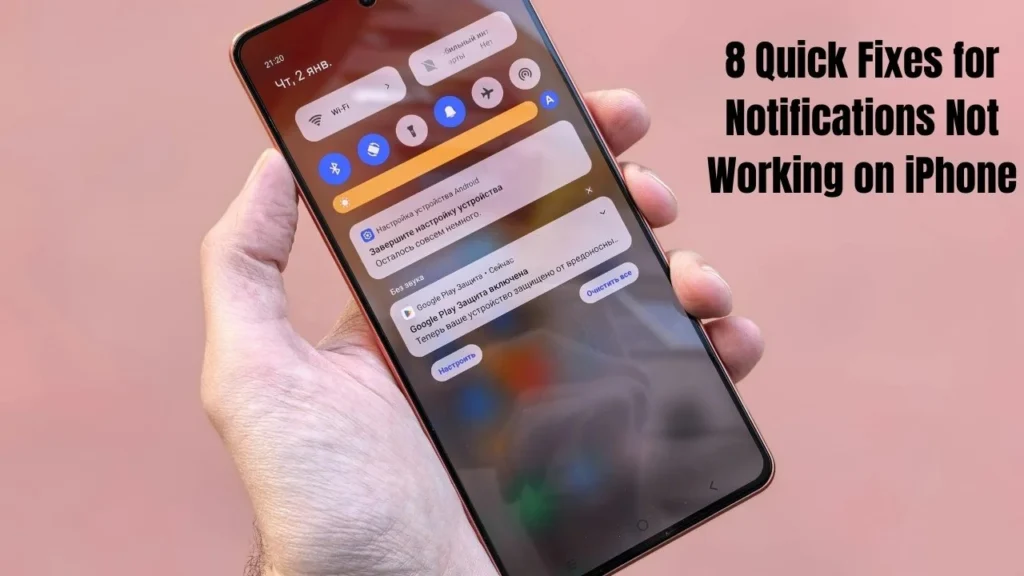
8 Quick Fixes for Notifications Not Working on iPhone
But don’t worry! We have 8 proven methods to fix this problem. All solutions work for all iDevice models such as iPhone X, iPhone 11, iPhone 12, iPhone 13, and iPhone 14. Now, let’s begin fixing iPhone notifications. If you have any issue related to to iphone guide then visit this page.
Why Are iPhone Notifications Not Working?
Your push notifications may not work for a number of reasons. The most common causes include.
Software bugs can block your notifications. At times, your iOS stops functioning and sends alert problems.
Wrong settings also cause problems. You might have turned off notifications by mistake. Silent mode or Do Not Disturb can block all sounds.
Poor internet connection affects notifications too. To get alerts, ensure that your iPhone has a stable Wi-Fi or mobile data connection.
Old iOS versions often have bugs. Apple makes updated versions constantly to fix such bugs. If you have any issue related to White Lines on iPhone Screen then dont worry we also provide solution of this issue here on this website.
Quick Fixes for iPhone Notifications Not Working
Here are 8 simple ways to fix your notification problems. Try these methods in order for best results.
Simply Restart Your iPhone
Restarting your iPhone is the best first step. This simple fix solves most iOS problems quickly.
For iPhones with a home button, press and hold the power key for 2-3 seconds. Wait for the power off slider to appear.
Starting from iPhone X until iPhone 14: Press and Hold Volume Up or Volume Down Button AND Side Button together. Keep holding until you see the power off slider.
When the slider appears, drag it to the right. This will shut down your iPhone completely.
Wait 30 seconds, then turn your phone back on. To restart your iPhone, press and hold the side button until you see the Apple logo.
A restart helps stop all work happening behind the scenes. In many cases, the processes lead to device malfunctioning. When you reboot your iDevice, everything starts from scratch.
This method is also called a hard reset. It is not the same as a force restart, but both will help solve the problem of notifications. How to Fix Calculator App Not Working on iPhone? Complete Guide
Check if Your iPhone is in Silent Mode
Silent mode is a common reason for missing notifications. Many users forget they turned it on.
Look at the side of your iPhone. You’ll see a small switch above the volume buttons.
If there’s an orange stripe on the switch, you can take it that your phone is on silent. This blocks all notification sounds and vibrations.
To remedy the situation, all you must do is flip the switch towards the screen. The orange stripe should disappear. Your phone is now in normal mode.
Important note: Your screen must light-up for notifications, even if you are on silent. If it doesn’t, you have a different problem.
Often people keep their phone on silence mode when in a meeting and forget it. Always check this first before trying other solutions.
Update iOS on Your iPhone
Apple provides regular updates of the iOS to fix bugs. Old software often causes notification problems.
How to check for updates.
Go to Settings on your iPhone. Tap on General, then tap Software Update.
Your phone will check for new updates. If an update is available, tap Download and Install.
The latest version available is iOS 16. It includes many fixes for notification issues.
Software bugs which may block notifications are fixed by new versions of iOS. They also improve how push notifications work.
Before upgrading, it is wise to back up. This keeps your information safe during the update process.
Updates can take 30-60 minutes to complete. Make sure your iPhone is plugged in during this time.
Check Whether Do Not Disturb is Activated
DND or Do Not Disturb feature is helpful but may also block those notifications.
On top of your iPhone screen can see ‘do not disturb’ or DND. If you see a moon icon, DND is turned on.
DND blocks all notifications and calls. It only allows calls from your favorite contacts.
How to turn off DND.
Go to Settings on your iPhone. Scroll down and tap on Do Not Disturb. Toggle the switch to turn it off.
Another quick way to turn off DND is through Control Center. Notice the battery signal at the upper right? That small triangle holds some powerful secrets. Tap the moon icon to turn it off.
People accidentally enable Do Not Disturb. Sometimes, they swipe on the wrong side in Control Center.
Your push notifications will start working again once you disable DND.
Check App Notifications Settings
Sometimes aPeople accidentally disable pp notifications. Users miss messages and don’t receive emails from some apps.
- How to check notification settings.
- Go to Settings on your iPhone. Tap on Notifications.
- You’ll see a list of all your apps. Each app has its own notification settings.
- How to fix app notifications.
Tap on the app that’s not sending notifications. Look for “Allow Notifications” at the top. Make sure this toggle is turned on.
- Important apps to check.
- Mail notifications for email alerts.
- Calendar notifications for appointment reminders.
- Message notifications for text alerts.
- Social media apps.
- Work-related apps.
Each app has options for sounds, badges, and banners in advanced settings. Make sure these are set up the way you want.
It is advisable to check the most useful apps first. Before using entertainment apps, focus on mail, calendar and messages.
Connect to a Stable Network Connection
Push notifications need internet to work. If your connection is not good you won’t get alerts on time.
Check your Wi-Fi connection.
Go to Settings and tap Wi-Fi. Make sure Wi-Fi is turned on. Look for the checkmark next to your network name.
Take a look at the top of your screen for the Wi-Fi icon. You need at least 2-3 bars for reliable notifications.
How to connect to Wi-Fi.
In Settings, tap Wi-Fi. Choose your network from the list. Enter your password if needed.
Check your mobile data.
If Wi-Fi isn’t available, you need mobile data. Go to Settings and tap Mobile Data (or Cellular). Make sure it’s turned on.
If the connection is slow, restarting the Wi-Fi can help fix the problem. To fix the internet errors on your Mac device you can also try forgetting the Wi-Fi connection and reconnecting to the same.
While traveling, there may be weak signals. Wait a bit with no problem in a better network.
Restore Your iPhone
Factory reset should be your last option. Through this process, you’ll reset your iPhone such that it works just like a brand-new device.
Please be aware that you will lose all your data after this. Backup your iPhone first using iCloud or iTunes.
How to restore your iPhone.
Connect your iPhone to your PC using a cable. Open iTunes on your computer.
Click on your iPhone when it appears in iTunes. Click on Summary in the left sidebar.
Click “Restore iPhone” button. iTunes will seek your confirmation before proceeding.
Click “Restore” again to start the process. This will download fresh iOS firmware and install it.
The restore process takes 30-60 minutes. Please be patient. Don’t disconnect your iPhone during this time.
Your iPhone will reboot to the setup screen after restoring. Set it up as a new device or restore from your backup.
Generally, This method solves notification problems 90 percent of the time. But only use it if other methods don’t work.
Fix iPhone Issues with Professional Repair Tools
You may have some firmware issue if you still don’t get Notifications. Professional repair tools can help fix these problems.
One tool for fixing system issues is Wondere. It can fix many iOS problems including notification issues.
How system repair works.
Connect your iPhone to your PC with a cable. Launch the repair software.
Choose between Standard Mode and Advanced Mode. Standard Mode keeps your data safe. Advanced mode deletes everything except it fixes serious issues.
The software will fetch the proper iOS firmware for your model iPhone. This takes several minutes.
To resolve this issue, simply click “Fix Now”
The software automatically resolves any bugs or firmware problems.
Benefits of professional tools.
No data loss with Standard Mode.
Fixes device malfunction problems.
Helps with unresponsive device issues.
Can fix phones stuck in boot loop.
When to use: If this method is your. iPhone has serious software problems that basic fixes can’t solve.
Additional Tips to Prevent iPhone Notification Issues
Keep your iOS updated regularly. New updates fix bugs before they cause problems.
Don’t install too many apps at once. This can slow down your iPhone and affect notifications.
Restart your iPhone once a week. This keeps the system running smoothly.
Check your notification settings after major iOS updates. Sometimes updates change your settings.
Keep some free storage space on your iPhone. Full storage can cause notification delays.
When to Contact Apple Support
Contact Apple Support if none of these methods work. You might have a hardware problem.
Signs you need professional help:
- iPhone screen doesn’t light up at all
- iPhone keeps restarting by itself
- Physical damage to your iPhone
- iPhone is very old and slow
Apple Store visits are best for hardware problems. Online support works well for software questions.
Check your warranty status before getting repairs. If your iPhone is still under a warranty, perhaps your answer is completely free.
FAQS
Why are my iPhone notifications delayed?
When the internet connection is slow or flaky, notifications may get delayed. Check your Wi-Fi or mobile data signal strength. To extend your battery life, iOS hoards some notifications.
Can airplane mode affect iPhone notifications?
Yes, airplane mode blocks all internet connections. When your device is in airplane mode, you won’t receive any push notifications. Turn it off to receive notifications again.
Do VPNs interfere with iPhone push notifications?
Some VPNs can slow down or block notifications. If you’re using a VPN, try disabling it to see if notifications get better.
How to fix notifications for specific apps only?
Go to Settings > Notifications. Find the problem app and tap on it. Make sure “Allow Notifications” is turned on. Ensure that sounds, badges, and banners are enabled and working.
Conclusion
Use these 8 methods to fix most notifications not working on iPhone issues. Begin with basic fixes—silent mode and Do Not Disturb likely have your calls muted.
Try restarting your iPhone and updating iOS next. Most issues with notification caused by software can be fixed by following these steps.
If serious problem, restore iPhone or use professional repair tool.
Always create a backup of your data before applying the major fixes.
You don’t have to worry anymore about missing calls, missing e-mails, and missing messages. If your iPhone notifications don’t work properly, try these solutions.
If you follow these ways one by one, you will get all important alerts. Your personal and professional life will regain normalcy soon.