8 Ways to Fix an iPhone Front Camera When It’s Not Working
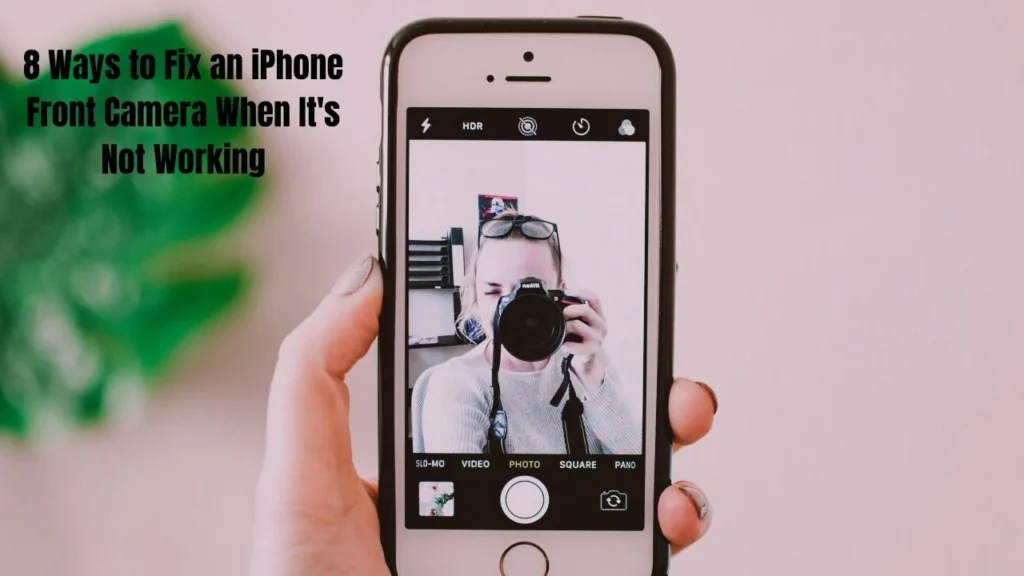
iPhone front camera not working? No selfies, no FaceTime call? Don’t panic — most front-facing camera issues are simple to correct. Hardware failure is very rare, your selfie camera is most likely to stop working because of software bugs not hardware failure. If you face any problem related iphone guide then visit this page.
Here is a guide on 8 easy solutions you can apply on iPhone camera not working issue. Without setting foot in an Apple Store, most people solve the problem in a few minutes.
Things You Should Know
- Your iPhone camera may stop working due to software glitches, full storage, or wrong settings.
- Simple fixes like restarting the Camera app or switching views solve most problems.
- Update your iOS device and clear storage for better camera functionality.
- Contact Apple Support if nothing works—you might have a hardware issue.
Force-Close and Restart the Camera App
The fastest way to fix camera black screen problems is restarting the Camera app. Apps freeze or crash when they run too long. A quick restart clears these glitches. If you have any issue related to Red Eye on iPhone then dont worry we also provide solution of this issue here on this website.
How to force-close the Camera app:
For iPhones without a Home button:
- Swipe up from the bottom of your screen and pause in the middle.
- Find the Camera app card.
- Swipe up on it to close completely.
For iPhones with a Home button:
- Double-click the Home button.
- Swipe up on the Camera app card.
Open the Camera app again and test your front camera. This simple restart fixes many camera app crash problems immediately.
Switch Between Front and Back Camera Views
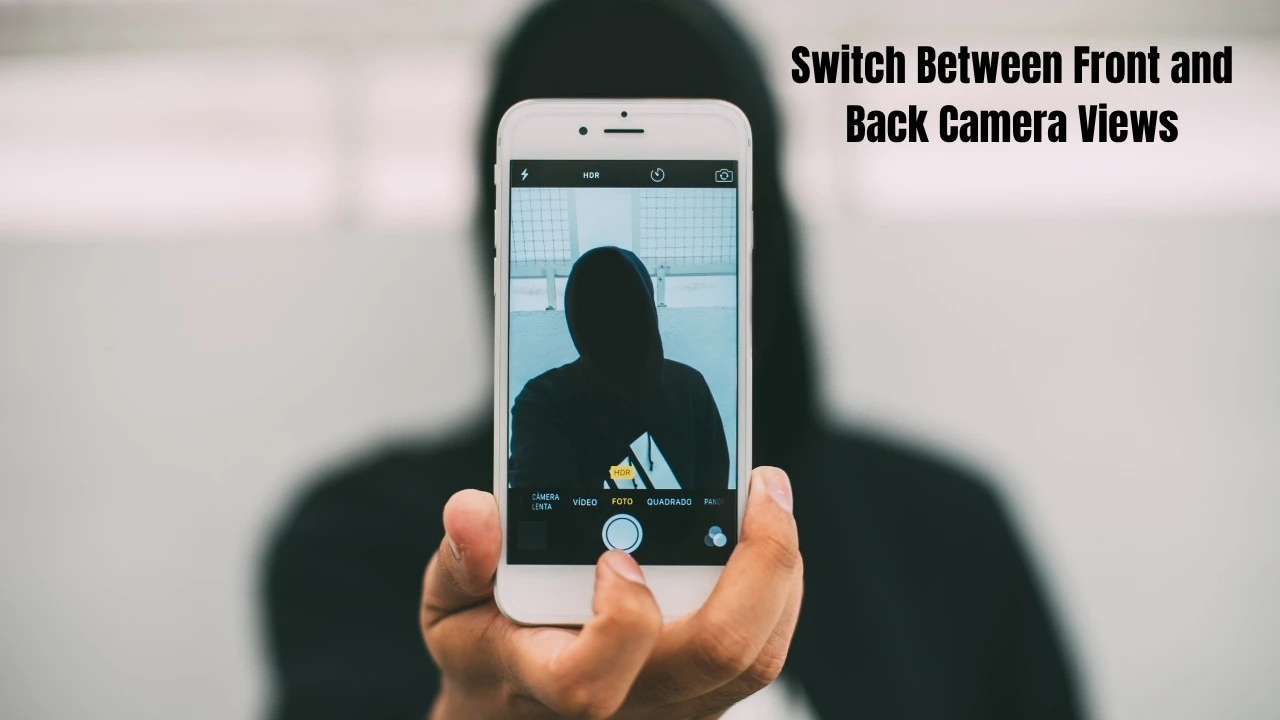
Sometimes toggling between your rear camera and front-facing camera resets the connection and fixes the black screen on camera.
Steps to switch camera views:
- Open the Camera app.
- Tap the flip camera icon (overlapping circles) in the bottom-right corner.
- Switch from back to front, then back again 3-4 times.
- Try switching in different camera modes like Photo, Video, and Portrait.
This camera view switch action forces your iOS device to reconnect to both cameras. Many users report their iPhone selfie camera not working problem disappears after this.
Restart Your iPhone
A full restart iPhone fixes most camera malfunctions. Restarting clears memory and stops background processes that interfere with your iPhone camera.
How to restart your iPhone:
For iPhone X, 11, 12, 13, 14, 15 (no Home button):
- Press and hold the Side button and Volume Up button together.
- When the power slider appears, slide it to turn off.
- Wait 30 seconds.
- Press the Side button to turn your phone back on.
For iPhone 8, 7, 6s and earlier (with Home button):
- Press and hold the Side button until the slider appears.
- Slide to power off.
- Wait 30 seconds.
- Press the Side button to restart.
After restarting, open the Camera app and test your front-facing camera. This fix solves about 40% of camera troubleshooting problems.
Clear iPhone Storage Space
Your iPhone front camera not working might be caused by full iPhone storage. The Camera app needs space to save photos. When storage fills up, your camera freezes or shows a black screen.
Check your storage:
- Go to Settings.
- Tap General.
- Tap iPhone Storage.
- Check your available space—you need at least 1-2 GB free.
Ways to free up storage:
- Delete unused apps and old photos.
- Clear your Recently Deleted album in Photos.
- Upload photos to iCloud or Google Photos.
- Delete old messages and attachments.
Keep at least 10-15% of your storage free for smooth camera performance. After clearing space, restart your iPhone and test the camera.
Update Your iPhone Software
Outdated iPhone software causes many camera issue fix problems. Apple releases software updates that fix bugs and improve camera functionality.
How to update your iPhone:
- Connect to Wi-Fi.
- Go to Settings.
- Tap General.
- Tap Software Update.
- If available, tap Download and Install.
- Enter your passcode and wait for installation.
Always backup iPhone data before major updates. After updating to the latest iOS version, your front camera error iPhone problems usually disappear.
Disable VoiceOver
The VoiceOver feature can interfere with your iPhone camera and cause a black screen on camera. This accessibility settings option helps people who can’t see their screen, but it sometimes conflicts with camera operations.
Turn off VoiceOver:
- Go to Settings.
- Tap Accessibility.
- Tap VoiceOver.
- Toggle off the VoiceOver switch.
Also check other accessibility settings like Zoom and Magnifier. Disable them temporarily to test if they’re causing camera not opening problems. If you want to read about Refrigerant Type Your HVAC than visit this page.
Reset All Settings
If your iPhone front camera not working problem continues, try reset all settings. This restores your iPhone settings to defaults without deleting photos, apps, or personal data.
What gets reset:
- Wi-Fi passwords and network settings
- Privacy settings and app permissions
- Location settings
- Display and sound preferences
- All camera settings
What does NOT get deleted:
- Photos and videos
- Apps and app data
- Messages and contacts
- Music and files
How to reset all settings:
- Important: Backup iPhone first using iCloud or a computer.
- Go to Settings.
- Tap General.
- Tap Transfer or Reset iPhone.
- Tap Reset.
- Tap Reset All Settings.
- Enter your passcode and confirm.
Your iOS device restarts in 2-5 minutes. After restarting, reconnect to Wi-Fi and test your selfie camera. This factory reset of settings fixes corrupted preferences causing camera stopped working issues.
Contact Apple Support
If none of these fixes work, your iPhone camera likely has a hardware issue. Physical damage needs professional repair.
Signs of hardware damage:
- Visible damage to the camera lens
- Camera stopped working after dropping your iPhone
- Only front camera fails, but back camera works fine
- Black screen persists after trying all software fixes
How to get help:
- Check your iPhone warranty status at apple.com/support.
- Visit the Apple website at support.apple.com to chat or schedule a call.
- Book a Genius Bar appointment at your nearest Apple Store.
- Find an authorized Apple service provider near you.
Typical repair costs in the USA:
- Under warranty or AppleCare+: Free
- Out of warranty: $99-$329 depending on your iPhone model
Get a diagnosis from Apple before paying for repairs. Your issue might be covered under warranty.
Fix Your iPhone Front Camera Today
This is another solution for iPhone front camera not working issue since most of the iPhone front camera not working problems arrive from software bugs instead of broken hardware. How to Fix the iPhone Camera Not Working Issue: Begin with Basic SolutionsForce Close App ProgramsSwitch View in Camera ModeRestart iPhone
If they do not work, clear the cache and storage, update the firmware to the latest iOS or reset all settings. Most of the camera malfunction problems can be resolved at home using these steps without quite the need of the professional support.
Try these 8 methods in order. Most of the camera bugs issues will be sorted and you will be back to clicking selfies or making a video call in no-time!