
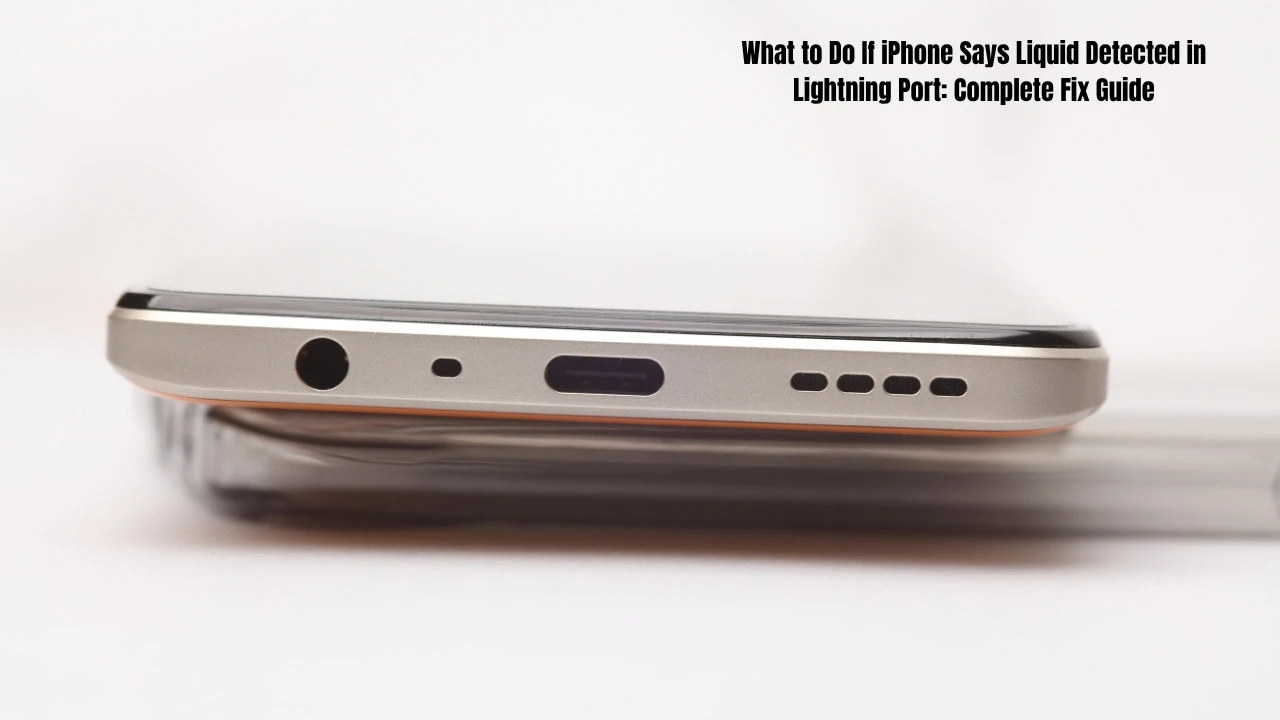
What to Do If iPhone Says Liquid Detected in Lightning Port: Complete Fix Guide
Have you ever plugged your charger into your iPhone to receive a scary message? Seeing “liquid detected in Lightning connector” can easily make any iPhone user panic. You might think your phone is ruined. But don’t panic—we’re here to help you through this.
We help people solve tech problems every single day. We can manage the problems such as your iPhone not charging or even your iPhone water damaged. When you see that liquid detected notification, we will show you what steps to take.
The good news? Your iPhone® is built tough. A lot of the time, your phone isn’t broken when you see this. It’s actually your phone trying to protect itself. Let’s walk through everything you need to know. If you have any issue related to to iphone guide then visit this page.
What Does “Liquid Detected in Lightning Connector” Mean?
When the iPhone sees liquid damage, it is doing its job to detect the damage. At the bottom of your phone, there is a small slot (the charging port) called the lightning connector. When your device detects moisture or water inside the lightning connector, this error message shows up.
There are special sensors in your iPhone®’s Lightning port. These sensors are smart. They can detect even tiny amounts of liquid. Moisture exposure to these sensors triggers an immediate warning to your phone.
Liquid warning as a reason of Lightning port isn’t always about too much water. Sometimes just a few drops are enough to trigger it. Your phone isn’t able to differentiate between water, soda, coffee or sweat. Any liquid will set off the alert.
Why Does Your iPhone Show This Message?
Multiple daily situations can do this a scenario and affect the warning. There are many reasons like accidentally spilling coffee or water on your mobile phone, using your phone near the pool or beach, sweaty hands on a hot day or dropped in the pool.
Sometimes the problem isn’t your phone at all. Accessories of your iPhone may also cause this. You will see the message if you plug in damp iPhone earphones or other water-speaker accessories. If you have any issue related to Muffled iPhone Audio then dont worry we also provide solution of this issue here on this website.
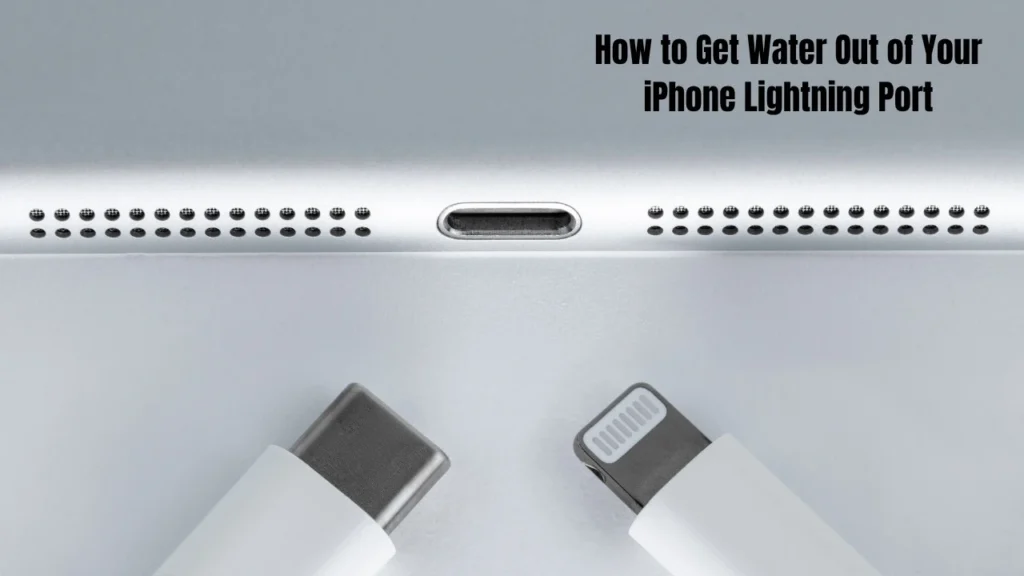
How to Get Water Out of Your iPhone Lightning Port
Immediate Actions When You See Liquid Detected Warning
As soon as you see the liquid detection notification, do something immediately. First, disconnect everything immediately. Pull out your Lightning cable from your phone. Unplug any additional iPhone accessories that may be connected.
Next, consider powering off your iPhone®. This step reduces the risk of an electrical short-circuit. Hold down the power button and slide to power off.
Finally, remove your phone case. Cases can trap moisture against your phone. Take it off so air can reach all sides of your device.
The Proper Way to Dry Your iPhone Charging Port
Now comes the most important part—drying iPhone properly. The key word here is patience. You cannot rush this process.
Start by tapping your phone gently. With the Lightning connector pointing down to the floor, hold the iPhone®. In order to remove water, tap downwards by gently tapping your palm 5 to 10 times. You’re using gravity to help liquid run out of the port.
Place your phone in a dry spot with good airflow. Find a room with low humidity. Set your phone on a flat surface. The key is sufficient airflow drying. I would like your help with something. If possible, please leave immediately in a dry area with a fan or air conditioning. Just don’t point a fan directly at the phone.
Wait at least 30 minutes before testing. This is the minimum time you should wait. After 30 minutes, try plugging in your Lightning cable. If the liquid detected alert is still showing you need more time.
If the warning persists, repeat the process. Disconnect charger again. Let your phone sit for several more hours. If the case is stubborn, wait 24 hours before the iPhone charging port becomes completely dry.
What NOT to Do When Your iPhone Has Liquid in the Lightning Port
When your phone isn’t charging, you want a quick fix for the problem. Although a good number of phones can be permanently damaged by a “fix”.
Don’t use external heat sources. Never dry your phone with a hair dryer, heater, or oven. High heat damages internal components. It is capable of melting delicate internal components of your iPhone® that cannot be repaired.
Don’t use compressed air. Using compressed air in the Lightning port drives water deeper into your phone. This spreads liquid damage to places that were still dry.
Don’t insert foreign objects. Do not use a cotton swab, paper towel, toothpick or any other device to clean the port. The fragile pins inside the Lightning connector may be damaged by these. Once those pins bend or break, your port won’t work at all.
Don’t put your iPhone in rice. This is a popular myth, but rice doesn’t work well. Your Lightning port might have rice grains stuck in it causing more issues. Instead, silica gel packets actually help if you have them. These small packets absorb moisture much better than rice.
Should You Use Emergency Override to Charge Your iPhone?
When you charge your system, you may see the option for Emergency Override mode. The warning becomes visible when you remove the charging cable during charging state and reinsert.
Should you use it? Only in true emergencies. Utilizing this feature forces your phone to charge even with moisture present. Your iPhone® and Lightning cable can get permaently damaged due to this. Corrosion can collect on the metal contacts and ruin your charging port.
A better option is wireless charging. If you have a wireless charger, use wireless charging instead. Your iPhone® 8 and newer models support this feature. Ensure that the back of your phone is dry before putting it on the charger. This ensures you can charge safely without damaging your Lightning connector with any liquid.
What to Do If You’ve Cracked or Broken Your iPhone Screen
When to Seek Professional Help
Sometimes air-dry iPhone methods aren’t enough. If the liquid detected warning in your lightning port hasn’t gone away with 24 to 48 hours, seek repair services. An uBreakiFix® store or Apple Store will take a look at your port thoroughly to clean it up. They offer same-day repair in many cases.
Preventing Future Liquid Detection Warnings
Want to extend device lifespan and avoid this problem? Keep your iPhone® away from water when possible. Even water-resistant iPhone models aren’t completely waterproof iPhone devices It’s crucial to understand the difference between waterproof vs water-resistant—your phone can get splashed, but not swim.
Store your phone in a safe, dry place. Be careful using it near sinks, bathtubs, or pools. By following simple habits, you can prevent water damage to your phone or device.
Final Thoughts
When you see the liquid detection warning on your iPhone, it can be stressful. But most times, it’s something that you can easily fix. First disconnect the charger and let your phone dry down and remain patient. Avoid quick fixes that cause more harm than good. Eventually, iPhone charging port will dry out and begin working normally with time and care. Whenever you require some more assistance, professional repair service is always at hand to make your device start working again.




![[2025] Fix iPhone Keeps Turning On and Off in 9 Ways](https://howtofixhelp.com/wp-content/uploads/2025/09/2025-Fix-iPhone-Keeps-Turning-On-and-Off-in-9-Ways-768x432.webp)