How to Solve the “Cannot Verify Server Identity” Error on iPhone
Do you see the “Cannot verify server identity” message on your iPhone? When your Mail app cannot connect to email server, you are shown this message. Don’t worry—you’re not alone. Everyday thousands of Apple device users are facing this SSL connection issue.
This error is annoying. It stops you from sending and receiving emails. But the good news? You can fix it yourself in just a few minutes. If you have any issue related to to iphone guide then visit this page.
This guide tells you how you can fix the Cannot Verify Server Identity error on iPhone. We’ll start with quick fixes that take 2 minutes. Then we’ll move to stronger solutions if you need them.
What Does “Cannot Verify Server Identity” Mean on iPhone?
Understanding the Error Message
The “Cannot Verify Server Identity” is the pop-up that appears on your screen. The server identity cannot be verified when using the mail server of your Internet Provider.
The iPhone Mail connection issue manifests at various points in time.
- When you open the Mail app on your iPhone
- While sending or receiving emails
- After you add a new mail account
- When your Apple Mail tries to sync in the background
All iPhone models can get this error. Whether you have the latest iPhone 15 or the oldest, it doesn’t matter. Any Apple device running iOS can show this message.
Why Does This Error Occur?
This is largely due to an expired or invalid SSL certificate. An SSL certificate works like a security badge. It proves that the mail server is who it claims to be. Your iPhone and your email provider share a secure cord thanks to it.
Your iPhone is unable to verify the certificate once it is expired. So it shows you the error to protect your data. If you have any issue related to Forbidden Error then dont worry we also provide solution of this issue here on this website.
Common causes include.
- Expired or corrupted SSL certificates: Your email provider didn’t update their security certificate
- Incorrect mail server settings: Your SMTP server or IMAP account has wrong information
- Outdated iOS software: Old versions have software bugs that cause email sync errors
- Network connectivity issues: Problems with your Wi-Fi networks
- Authentication failure: Your email login credentials aren’t working properly
Quick Fixes to Try First
Fix #1 – Restart Your iPhone
This is the easiest fix. When the iPhone basically runs into some software bugs and mail can’t be synced, don’t worry just restart the phone.
Here’s how:
- Press and hold the power button on your iPhone
- Slide to power off
- Wait 30 seconds
- Press the power button again to turn it on
- Open your Mail app to check if the error is gone
Why does this work? Because your temporary information will be deleted. It refreshes your network settings and email connection. This easy fix can solve the “Cannot Verify Server Identity” error on iPhone.
Fix #2 – Force Restart the Mail App
Sometimes your Mail app gets stuck. Force closing it gives it a fresh start.
For iPhones without a Home button:
- Swipe up from the bottom and hold
- Release when you see all open apps
- Find the Mail app
- Swipe up on it to close it
- Open Mail again
For iPhones with a Home button:
- Double-press the Home button
- Find the Mail app
- Swipe up on it to close it
- Open Mail again
Why does this work?: It forces your Mail application to completely restart. It connects to your mail server on its own and refreshes the SSL certificate check.
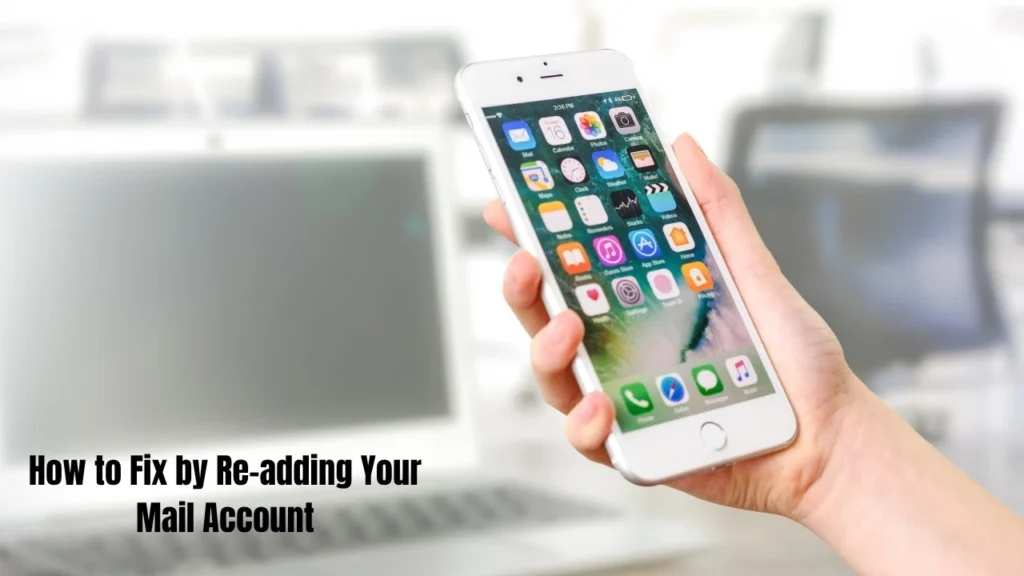
How to Fix by Re-adding Your Mail Account
This is the most effective solution. By removing and adding back your email account, everything refreshes.
Step 1 – Remove the Mail Account
- Open the Settings app (the grey cog icon)
- Scroll down and tap Mail
- Tap Accounts in the center
- Select your problem mail account
- Tap Delete Account at the bottom in red
- Confirm by tapping Delete Account again
Don’t worry—your emails won’t be deleted. They stay on your email provider’s server. You’ll receive those once you re-add the iPhone mail account.
Step 2 – Add Your Mail Account Back
- Go back to the Accounts page
- Tap Add Account at the bottom
- Select your email provider (Gmail, Yahoo, Outlook)
- Enter your email login credentials
- Wait for the Mail app to sync
- Send a test email to confirm it works
The process refreshes your account permissions. It gets new SSL/TLS security information. It fixes server connection failed problems. It creates a clean secure connection to your mail server.
Advanced Solution – Reset Network Settings
The process refreshes your account permissions. It gets new SSL/TLS security information. It fixes server connection failed problems. It creates a clean secure connection to your mail server.
Steps to Reset Network Settings
- Open the Settings app
- Tap General in the middle
- Tap Transfer or Reset iPhone at the bottom
- Tap Reset
- Select Reset Network Settings
- Enter your passcode if asked
- Confirm the reset
- Your iPhone will restart
After the restart, reconnect to your Wi-Fi network. Check if the verify server identity error is gone.
It clears faulty settings on your network. It takes out any bad settings blocking your email sync. It gives your iPhone fresh network data.
When to Contact Your Email Provider
Sometimes the problem isn’t on your iPhone. It’s on your email provider’s side.
Contact your email provider if.
- The error appears on multiple Apple devices
- It started after your email provider did maintenance
- All the fixes above didn’t work
- Other users report the same connection security issue
Ask them these questions:
- “Have your SSL certificates been updated recently?”
- “What are the correct incoming/outgoing server settings?”
- “Is there a known issue with iOS Mail app connections?”
They will check their mail server and give you updated settings. At times, it is required for them to fix the expired SSL certificate at their end.
Conclusion
You can Fix the “Cannot Verify Server Identity” Error on iPhone. When troubleshooting, reboot your iPhone and Mail app to make sure they’re working correctly. If those don’t work, delete and re-add your email account. This fixes most iPhone cannot verify account problems.
For stubborn errors, reset network settings on your iPhone. This clears deeper issues.
Remember—don’t ignore this error. It means your email connection isn’t secure. Act quickly to keep your data safe and make the Mail app work again.
Most people solve this problem in under 10 minutes. Follow these steps and you’ll be sending emails again soon.