How to Fix It When Your iPhone GPS Isn’t Working
When the GPS is down on the iPhone, people get furious. It’s one of the most commonly used features. At times your iPhone can show a “Location not available” message. At times, phone’s GPS may fail while you’re using it. Whatever the case, you can try a few different methods to fix GPS not working on iPhone.
Solutions to the lack of GPS signal mostly deals with configurations that a user can easily fix. This article applies to iPhones using iOS 12 to iOS 18. If you have any issue related to to iphone guide then visit this page.
Quick Overview: Why Your iPhone GPS Isn’t Working
Most iPhone GPS issues are settings-related and quite easy to fix. You don’t need technical skills to solve these issues. After updating iOS, or just changing a few simple settings, your iPhone could have problems finding its location. The good news is that most fixes take just a few minutes.
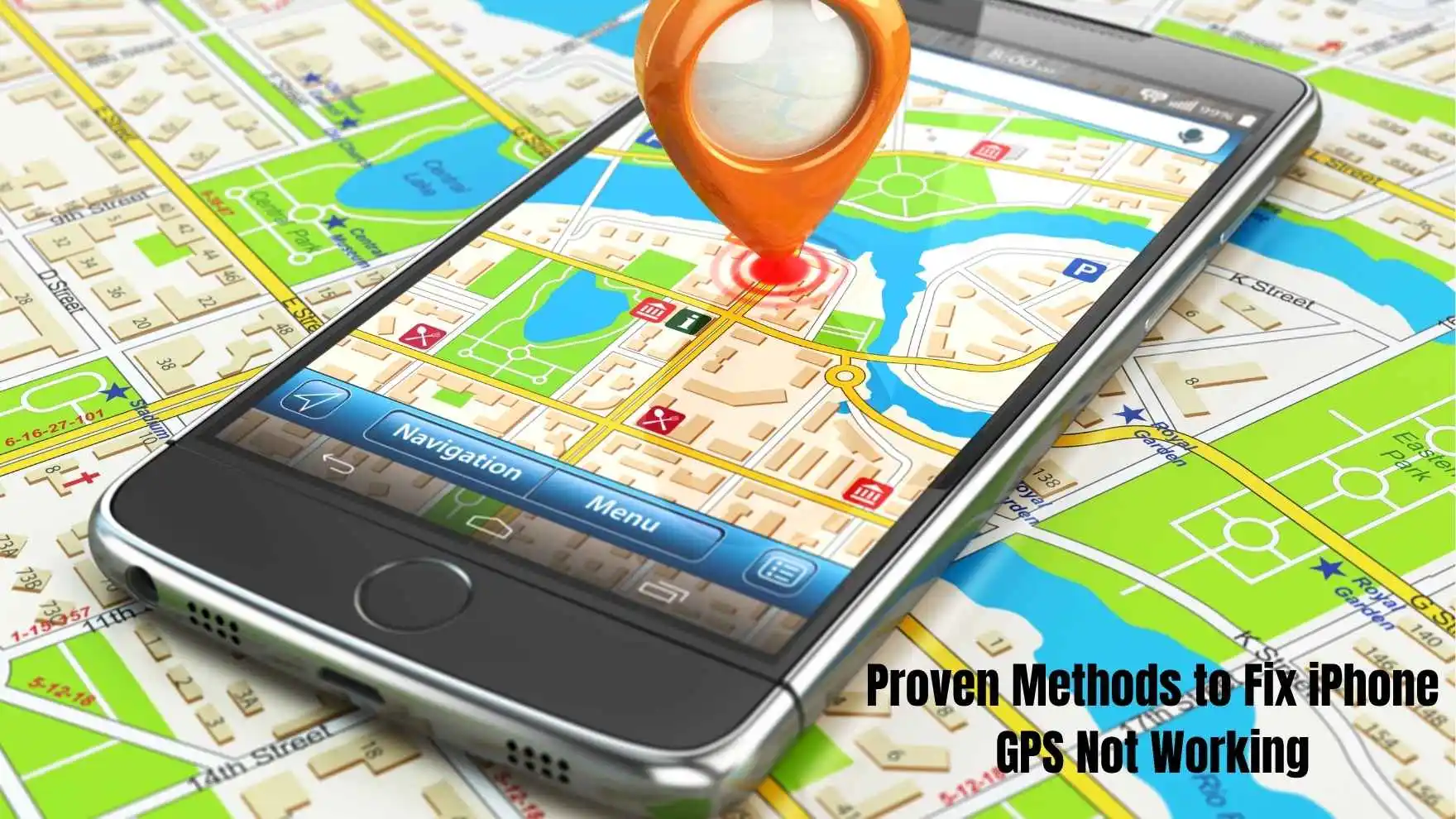
Proven Methods to Fix iPhone GPS Not Working
Restart Your iPhone
Turn it off, wait a minute, and turn it back on. A Restart often fixes any problem if something on the phone is not working. This one-step fix removes temporary glitches causing GPS issues on iPhone.
A restart refreshes all system processes. It restores regular functioning of GPS without changing any settings. If you have any issue related to Fix Blurry Videos on iPhone then dont worry we also provide solution of this issue here on this website.
Check Your Location and Signal Strength
Do not use the mobile phone in an area with poor or no signal at all. For instance, avoid using the phone in a metal building, dense forest and tunnels. Move to an open location and recheck the GPS signal.
GPS signal interference is common in certain locations. For the iPhone to connect with satellites, it needs a clear view of the sky. GPS signals cannot be accessed indoors or in places with many buildings.
Update Your iPhone iOS
Check that your iPhone has the latest iOS version and when it does not upgrade it. The iOS update comes with improvements on the current version.
Apple’s iOS updates often enhance Location Services. If your iOS is outdated, it probably has some known GPS bugs.
To update the software of your iPhone, open Settings > General > Software Update.
Enable and Toggle Cellular Data
Turn off the Cellular Data slider on your iPhone in settings, and turn it back on. Ensure you have a signal.
Using cellular networks improves the accuracy of localisation. Your iPhone uses GPS and cellular towers to determine your position. Turn on cellular data for GPS accuracy.
Turn On Wi-Fi for Better GPS Accuracy
For accurate measurements make sure that your Wifi is on in the app.
Apple said that the location services of your iPhone use a combination of GPS, Bluetooth, crowd-sourced Wi-Fi hotspots, and cell towers. This GPS and Wi-Fi integration creates an iPhone positioning system.
Turn on Wi-Fi for more accurate GPS even if you’re not connected. Your iPhone scans the Wi-Fi for better location information.
Toggle Airplane Mode On and Off
Here’s a simple fix: toggle Airplane Mode on for 30 seconds. Then turn it off and try your GPS again.
This reset helps clear connection issues. When you turn on airplane mode, it cuts off all wireless signals so that you can connect fresh.
Reset Location Services
Many Apple phone users benefit from toggling the Location Services feature of their device on and off again. Sometimes an object may get stuck and needs a quick reset.
Go to Settings > Privacy & Security > Location Services. Turn it off, wait 10 seconds, then turn it back on. This helps restore iPhone location settings.
Check Date & Time Settings
Another reason for GPS not working on the phone is its date and time settings. You can fix this problem if you go to Settings > General > Date & Time, then choose the option to Set Automatically.
Incorrect time settings confuse the GPS system. Accurate time data is needed by your iPhone for position calculation.
Reset Network Settings
When your Wi-Fi, GPS, and Bluetooth connections are broken resetting network settings fixes a whole lot of problems. After completing the reset, check if your GPS is working properly.
To reset your network settings, go to Settings, then to General and then to Transfer or Reset IPhone.
You may need to log in to your Wi-Fi as resetting the network breaks the connection.
Fix GPS in Specific Apps
If your GPS problem is only with one app:
- Close that app and reopen it
- Check the App Store to confirm you are running the most recent version
- Confirm Location Services are turned on for that particular app
- Delete it from the phone and reinstall app for GPS fix
This solution works well for navigation apps like Google Maps, Apple Maps, or Waze.
Factory Reset Your iPhone (Last Resort)
In case all the above solutions fail, factory reset your iPhone.
A factory reset erases all your settings and data. This should be used as a last resort to correct GPS issues on iPhones. Before Factory Reset You Can Backup Using iTunes, Finder Or iCloud To Prepare You risk losing everything if you don’t have a good backup.
What to Do If Your iPhone GPS Still Isn’t Working
It’s not common, but GPS may stop working for a bit after an iOS update. In a few hours it may get resolve by itself, or may need another update to fix it.
Take your Mac to Apple or an Apple authorized service provider for diagnosis and repair if the above fixes did not fix the service battery problem. Make an Apple Genius Bar appointment and go to the Apple Store with your iPhone. Contact Apple Support for additional help.
Common Causes of iPhone GPS Not Working
Certain iPhone configurations disable location services on purpose. There are other causes of a weak GPS signals, outdated map data or hardware malfunction. iPhone GPS problems are not something that you have to worry about too much.
If you know about these reasons you can save your iPhone location issues from happening again.


![[2025] Fix iPhone Keeps Turning On and Off in 9 Ways](https://howtofixhelp.com/wp-content/uploads/2025/09/2025-Fix-iPhone-Keeps-Turning-On-and-Off-in-9-Ways-768x432.webp)