Fix Your iPhone Alarm Not Going Off: Simple Solutions
Fast Fix
If your iPhone alarm isn’t going off, the most common cause is Attention Aware Features on iPhone X and later. This setting can lower your alarm volume if you’re not looking at your phone. To fix it: If you have any issue related to to iphone guide then visit this page.
- Go to Settings > Face ID & Attention.
- Turn off Attention Aware Features (switch should be gray).
- Open Settings > Sounds & Haptics and turn up the Ringer and Alerts volume.
- Make sure the mute switch on the side of your iPhone is off.
So, your iPhone alarm didn’t go off—and now you’re running late. You’re not alone. On newer iPhones, features like Attention Aware can cause your alarm to launch silently. But the good news is it’s easy to fix your iPhone alarm not going off. We’ll walk you through the most common reasons this happens and how to make sure your alarm wakes you up every time.
Common Reasons Your iPhone Alarm Not Going Off
When you set your iPhone alarm, you expect it to wake you up. But there are a few iPhone settings and software glitches that can get in the way. Here are the most common causes:
- Attention Aware Features are lowering sound alerts
- Your alarm volume is too low or muted
- Do Not Disturb mode or Sleep Focus is on
- Your alarm settings are set incorrectly
- A software glitch is affecting your iPhone alarm
How to Fix Your iPhone Alarm Not Going Off
If your iPhone alarm isn’t making a sound, try these proven solutions. iPhone Screen: Troubleshooting A Stuck Pixel – Complete Fix Guide (2025)
Turn Off Attention Aware Features
On iPhone X and later models, Attention Aware Features can automatically lower your alarm volume when you’re not looking at your screen. This is the number one reason for iPhone alarm not working.
Here’s how to disable Attention Aware on iPhone:
- Open Settings on your iPhone.
- Scroll down and tap Face ID & Attention.
- Find Attention Aware Features.
- Toggle the switch off so it turns gray.
Why this works: When Attention Aware is on, your iPhone thinks you’re already awake and aware if you move. So it lowers the volume. Turning this off ensures your alarm plays at full volume every time. If you have any issue related to Unblur a Video on iPhone then dont worry we also provide solution of this issue here on this website.
Check Your iPhone Alarm Volume Settings
Many people don’t realize that alarm volume is controlled by the Ringer and Alerts volume, not the media volume. If your iPhone alarm is too quiet, this is likely the problem.
Follow these steps to make iPhone alarm louder:
- Open Settings on your iPhone.
- Tap Sounds & Haptics.
- Look for the Ringer and Alerts slider.
- Slide it all the way to the right to increase volume.
Now check the physical silent mode switch on the side of your iPhone. This small switch above the volume buttons can mute sounds. You’ll see an orange indicator when silent mode is on. Flip the switch forward to turn off silent mode.
Turn Off Do Not Disturb and Sleep Focus
Do Not Disturb mode normally allows alarms to sound. However, Sleep Focus can silence alarms if not configured correctly. This is a common cause of iPhone alarm issues.
Here’s how to fix Do Not Disturb alarm issues:
- Open Control Center by swiping down from the top-right corner.
- Look for the crescent moon icon or Focus mode icon.
- If it’s highlighted, tap it to turn it off.
- To check Sleep Focus, go to Settings > Focus > Sleep.
- Make sure it’s not blocking your alarms.
Verify Your Alarm Settings Are Correct
Sometimes the problem is simply that the alarm settings weren’t configured correctly in the Clock app.
Open the Clock app and follow these steps:
- Tap the Alarms tab at the bottom.
- Verify the time is correct (AM vs PM is a common mistake).
- Make sure the alarm sound isn’t set to “None.”
- Check that the alarm toggle switch is green (turned on).
Update Your iPhone Software
iPhone alarm issues after update are common, but Apple regularly releases fixes with each iOS update.
Here’s how to check for an iOS update:
- Open Settings on your iPhone.
- Tap General.
- Tap Software Update.
- If an update is available, tap “Download and Install.”
After updating, always check your alarm settings in the Clock app. Sometimes alarm settings reset after update.
Restart Your iPhone
A simple device restart can fix many iPhone alarm troubleshooting issues.
For iPhone X and later:
- Press and hold the Power button and either volume button.
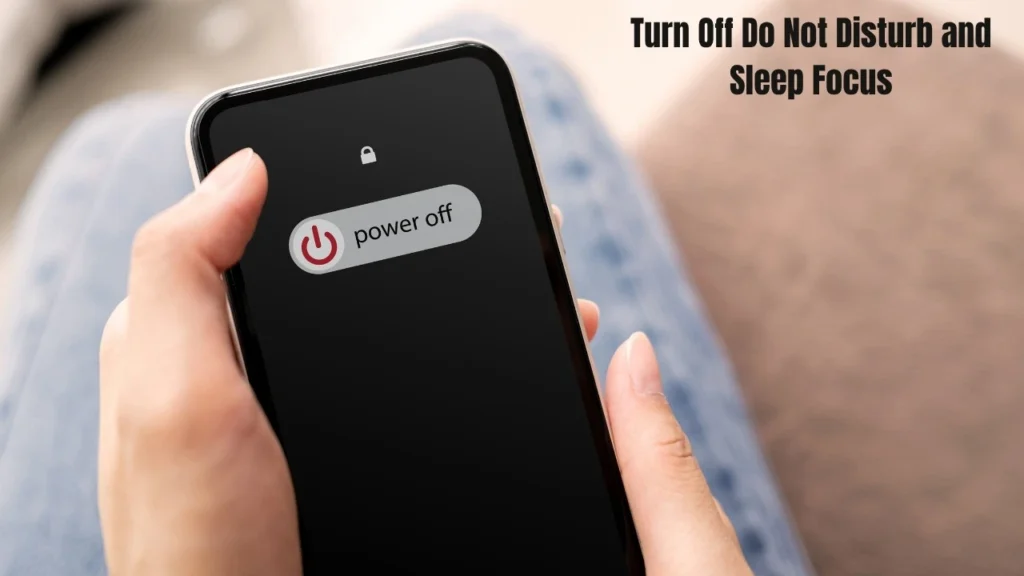
- Slide to power off when the slider appears.
- Wait 30 seconds.
- Press and hold the Power button again until the Apple logo appears.
Quick Prevention Tips
Once you’ve fixed your iPhone alarm, use these tips to prevent future problems:
- Set multiple alarms with different sounds
- Test your alarm during the day to verify it works
- Keep your iPhone charged overnight
- Check settings after iOS updates to ensure nothing reset
- Choose loud alarm sounds like “Radar” or “Presto”
When to Seek Professional Help
If you’ve tried all these alarm troubleshooting steps and your iPhone alarm still isn’t working, you might have a hardware problem. Contact Apple Support or visit an Asurion repair location for professional help.
Fix your iPhone alarm not going off by starting with Attention Aware Features. Then check your alarm volume, Do Not Disturb mode, and alarm settings in the Clock app. Most problems are simple fixes that take just a few minutes. Test your alarm tonight and never miss an important morning again.